
Inventory can be conducted for a specific Home Location or for your Whole Collection. If you choose to inventory by Home Location, multiple locations can be processed simultaneously.
- Notify SEO: Create a support ticket or call SEO to announce your intent to start an inventory. If you are inventorying specific areas, include the Home Location. SEO will confirm when you are cleared to begin.
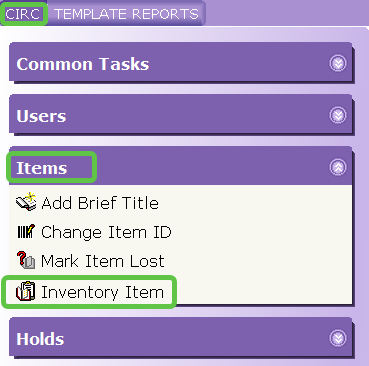
- From the CIRC toolbar, click the Inventory Item wizard located in the Items group.
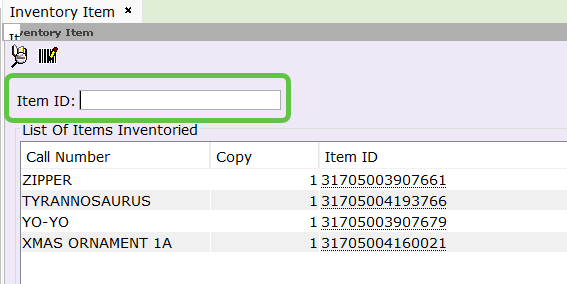
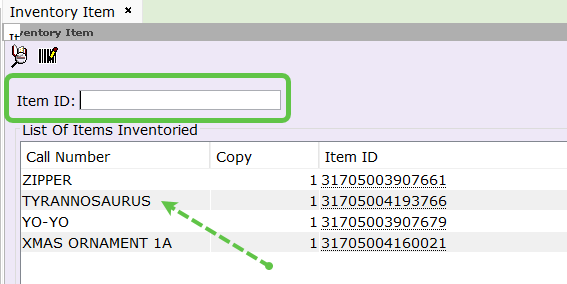
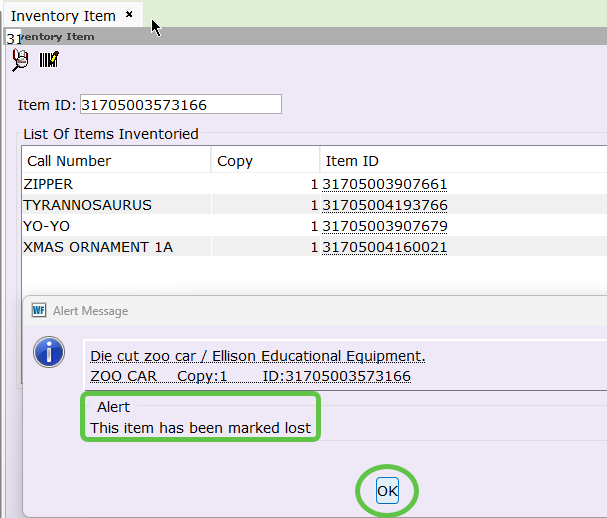
- Begin scanning your items. As you scan, the Call Number column will help you identify misshelved items.
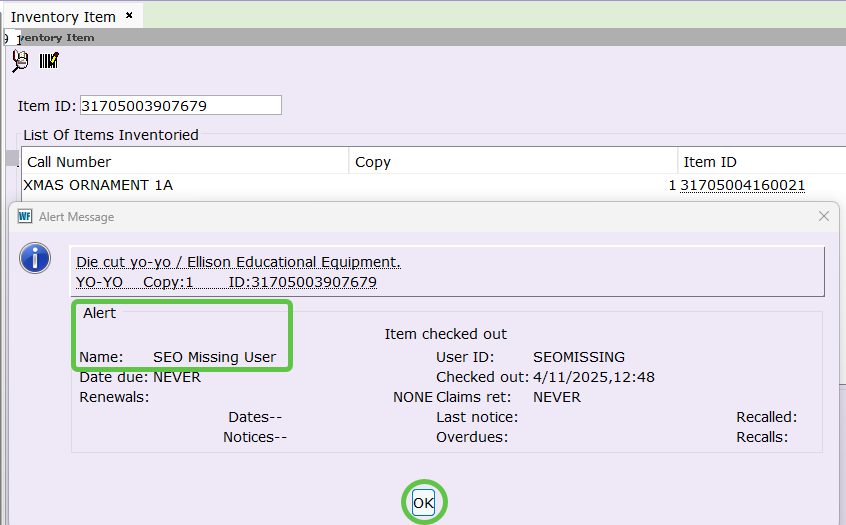
- Handle Alerts:During scanning, pop-up alerts may appear for items with statuses like "Checked Out" or "In Transit."Important: The status of an item does not change until it is manually checked in. You must use the Checkin wizard for any item that triggers an alert during inventory.
- Finalize with SEO: Contact SEO once you have finished scanning your shelves. We will provide a list of items not scanned during the inventory.
- Reconcile: Use the list to recheck your shelves.
- If found: Scan them through the Inventory Item wizard.
- If truly missing: Check the items out to your library's XYZMISSING or XYZDISCARD user account.