User Registration Procedure
Before registering a new patron, always perform a user search to determine if they already have a consortium account. While duplicate accounts are permissible in specific cases, SEO encourages using existing cards. Do not issue new cards to patrons with excessive fines at other member libraries.
Initial Registration
- From the CIRC module, click the User Registration Wizard in the Common Tasks group.

- Scan the new library card barcode into the User ID field.
- Select the appropriate Profile name for the patron from the dropdown menu.
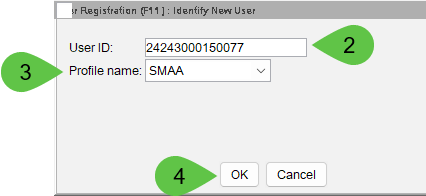
- Click OK.
Completing User Tabs
Basic Info Tab
- Enter the patron's First, Middle, and Last Name.
- Preferred Name: If the patron uses a preferred name (e.g., "Charlie" instead of "Charles"), enter it in the Preferred Name field and check the Use Preferred Name box to ensure it appears on notices.
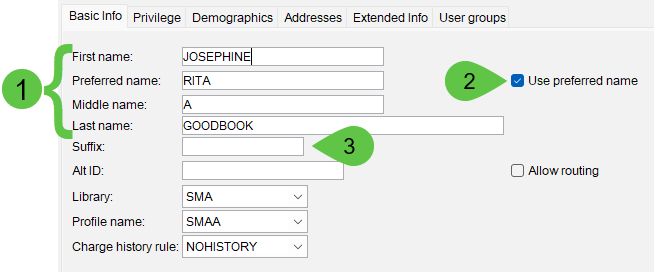
- Duplicate Check: Click Check Duplicate User. If no matches appear, click Cancel to return to registration. If matches appear, verify if the patron already has an active account.

Privilege Tab
The system automatically populates the Privilege expiration date based on your library's specific rules. Leave this date as is unless a manual override is required.
- PIN: The default PIN is
CHANGEME. To update it, enter the new PIN and provide the required staff override.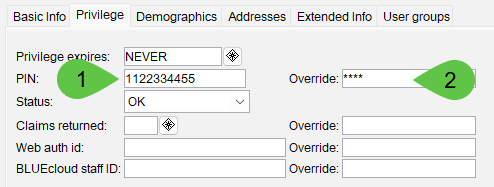
Demographics Tab
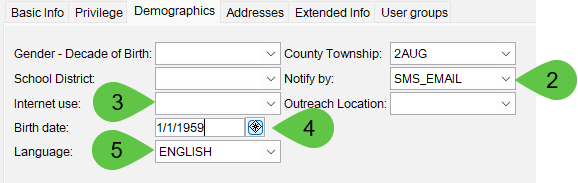
Fill in the required fields (Gender, Birth Year, Township, etc.) as determined by your library's settings. Select the patron's preferred notification method from the Notify by dropdown:
- EMAIL: Email notices only.
- SMS: Text message notices only.
- SMS_EMAIL: Both text and email.
- STANDARD: Phone or print (based on library preference).
- NONOTICES: Opt-out of all notifications.
Addresses Tab
- Enter Guardian information if the patron is a minor.
- Enter the mailing address following USPS standards (LINE1, CITY, STATE, POSTALCODE).
- Email: Enter the email address. Separate multiple addresses with a comma.
- Phone: Enter the primary phone number with hyphens (e.g.,
740-555-5555). - Text Messaging: If the patron chooses SMS notification, enter the cell number (numbers only) followed by
@sms.oplin.org(e.g.,7405555555@sms.oplin.org).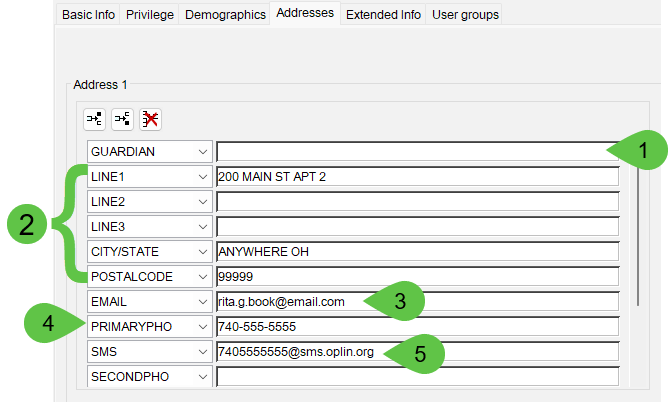
Extended Info Tab
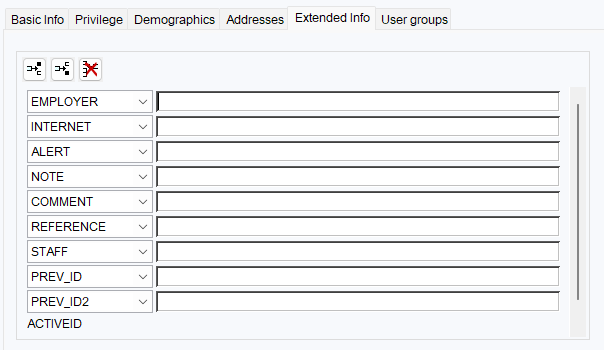
Use this tab to record employer information, references, or specific staff alerts and comments regarding the account.