
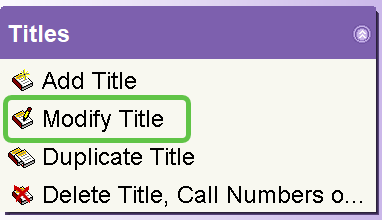
You can use the Modify Title wizard to edit bibliographic records in WorkFlows.
1. Editing an Existing MARC Field
Requirement: To use the Modify Title wizard, you must be logged in to WorkFlows with a TECH or MANAGER account.
- Open the Modify Title wizard.
- Search for the title you wish to edit.
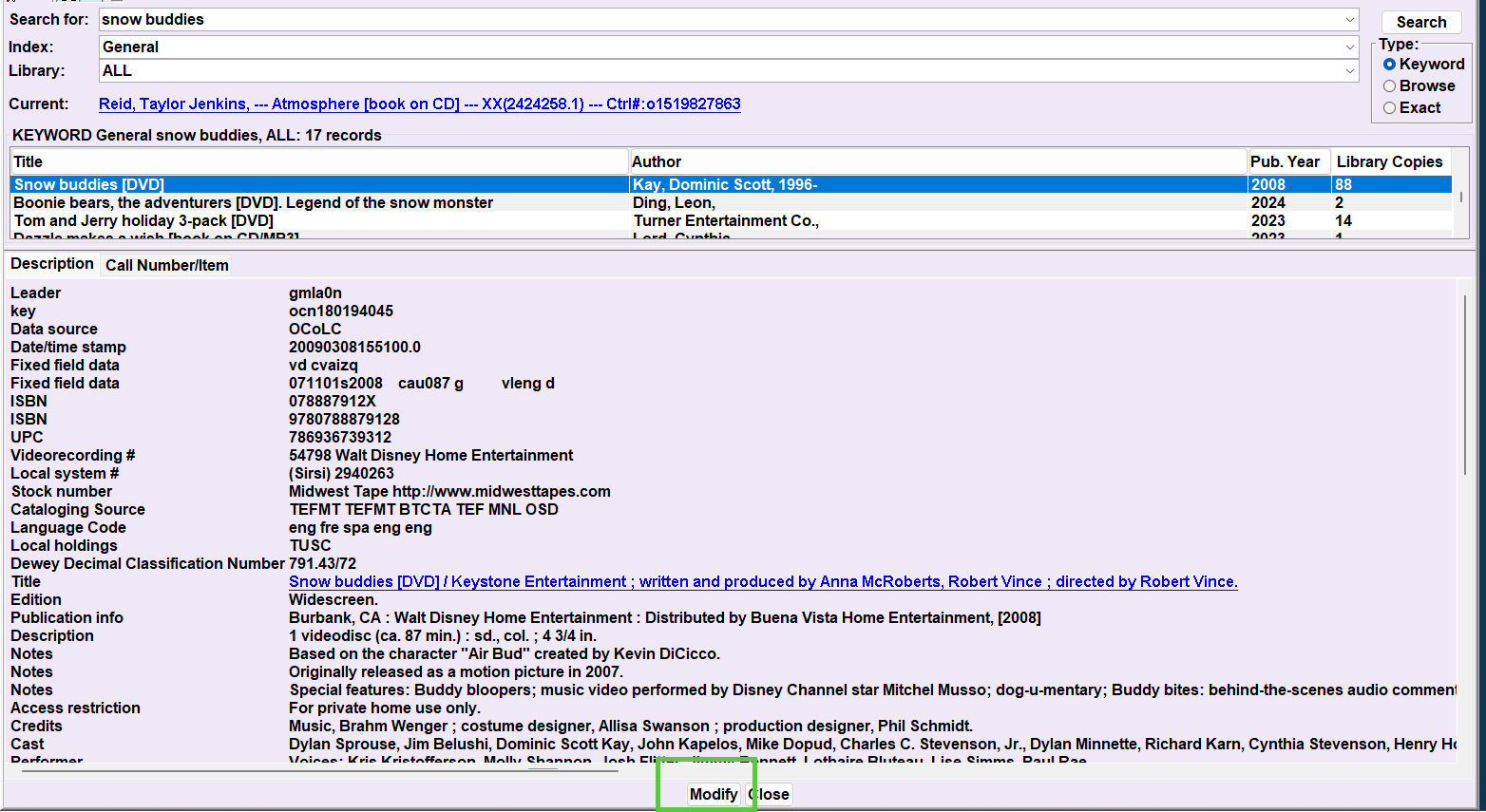
- Identify the correct record and click Modify.
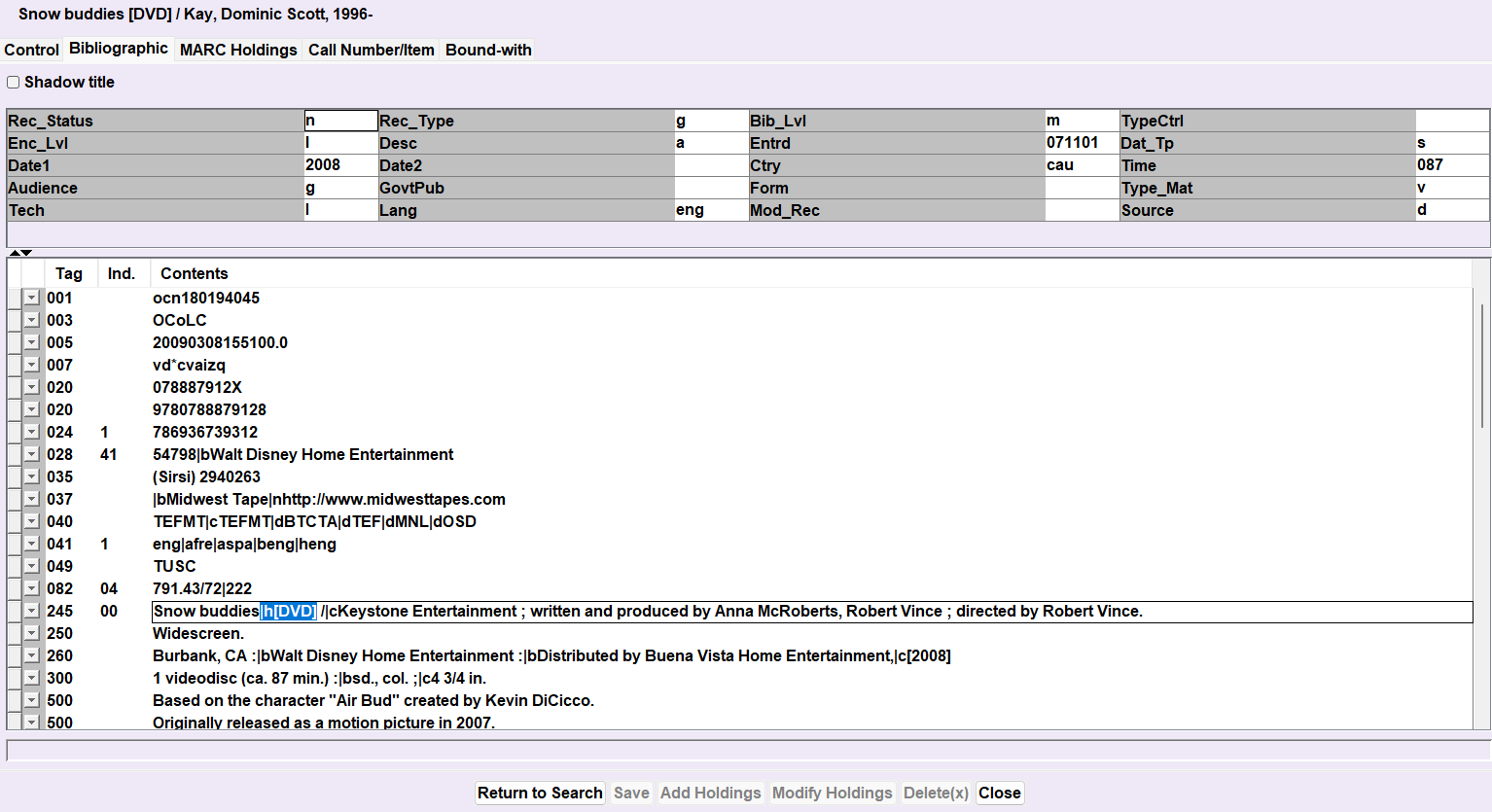
- Click in the field to be edited. The field will be outlined in blue with the cursor positioned at the end. Click again to move the cursor to the specific point where editing is needed.
- After you are done editing, click Save.
Note: If you do not wish to save changes, click Return to Search or Close. Answer "No" to the prompt: "Data Have Been Changed. Do You Want to Save?"
2. Adding a MARC Field
- Open the Modify Title wizard from the TECH toolbar.
- Search for and select your title, then click Modify.
- Click in the field above or below where you want the new field to appear.
- Right-click in the record.
- Select either Add Field Before or Add Field After.

- Enter the 3-digit MARC tag (e.g., 246 for an alternate title).
- Press the Tab key to move to the data area and enter the new information.

- Click Save.
3. Adding a Subfield
The most common subfield added is the GMD (General Material Designation). Please ensure you use SEO Consortium approved GMDs.
- Click in the field to be edited, then click again to position the cursor.
- Enter a pipe delimiter (|), followed by the subfield letter and the data (e.g.,
|h[DVD]). - Click Save.
The Pipe Delimiter (|)
To enter a pipe delimiter, press Shift + \ (Backslash). It appears as a vertical bar: |.
Important: You cannot use a lowercase 'L' or an uppercase 'i' in place of the pipe delimiter.
Location of the pipe key on a standard keyboard:

Common 245 (Title) Subfields
- |a
- Title Proper
- |n
- Volume or Part Number
- |p
- Part-Title
- |h
- GMD (Media format in brackets)
- |b
- Other Title Information (Subtitle, parallel title, etc.)
- |c
- Statement of Responsibility
GMD Placement Examples
- Print & Audiobooks: Follows the title proper in subfield
|hand precedes subfield|b.245 10 Wicked deeds|h[large print] /|cby Heather Graham. - Video Recordings: Follows subfields
|nand|p.245 04 The Partridge family.|nThe complete first season|h[DVD] : |b come on get happy.
Tips for Success
- Do not include a space between the pipe (|) and the subfield letter.
- Right-click when editing to access MARC Help via the Library of Congress or the RDA Toolkit.
- Use Right-click to delete fields or append data to existing ones.