
Table of Contents
Prerequisites and Login
Access the WorldShare portal here: OCLC WorldShare Login.
Important: If you use WorldShare ILL, you must log out of that session before signing into WorldShare Record Manager.
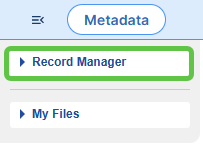
After signing in, the Record Manager tab may be collapsed. Click the tab to expand the menu options.
Basic Search
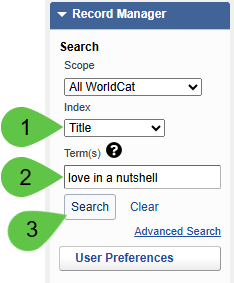
- Select your preferred Index from the dropdown. You may search by Keyword, Title, Author, ISBN, ISSN, or OCLC Number.
- Input your Search Term in the text field.
- Click Search.
Advanced Search
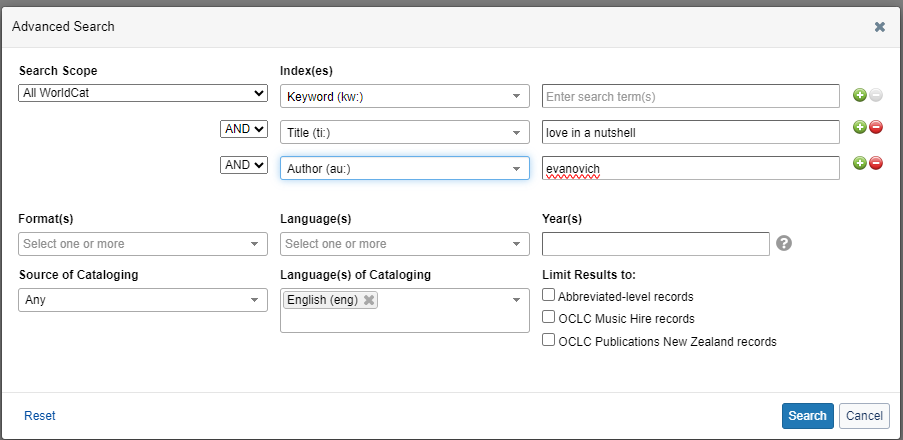
For more specific queries, click Advanced Search. This interface allows you to search multiple indexes simultaneously and apply limits such as Year, Language, or Format.
Search Results Screen
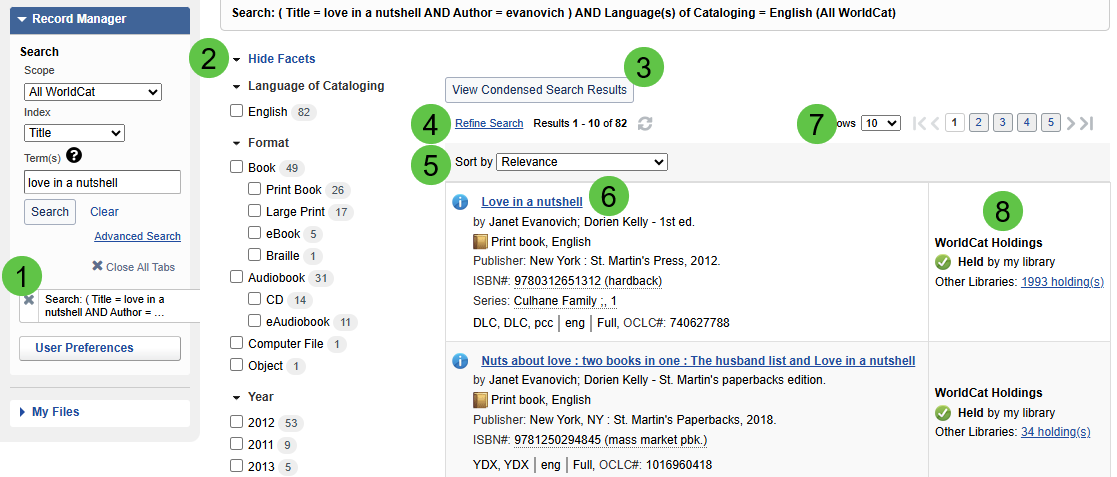
The results screen provides several tools to manage and filter your search findings.
Interface Elements
- 1. Tabs: Located on the side of the screen, these show your search history and recently viewed records. Click the X to remove a search or use Close All Tabs to clear the list.
- 2. Facets: Use these sidebar filters to narrow results by Language of Cataloging, Format, Year, or Author. Select a checkbox to filter; click the X on a selected facet to remove it.
- 3. Search Result Display: Click View Condensed Search Results for a simplified list view.
- 4. Results Summary: Your total result count and current position in the list are displayed at the top and bottom.
- 5. Sort By: Use the dropdown menu to organize results (e.g., by Date or Relevance).
- 6. Search Results List: The primary column shows brief bibliographic data. Click a Title to view full MARC data or hover over the Information icon for a quick preview.
- 7. Rows and Navigation: Adjust the number of rows displayed per page or use the navigation buttons to flip through result pages.
- 8. Held by My Library: This column indicates if your library (or an SEO member library) already has holdings attached to this record.
Saving Records and Setting Holdings
To prepare a record for import into WorkFlows, you must view the full record and export it to the SEO Export List.
- Click on the Title of the item to view the full MARC record.
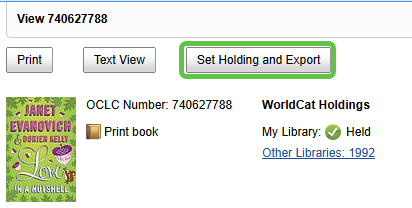
- Select Set Holding and Export.
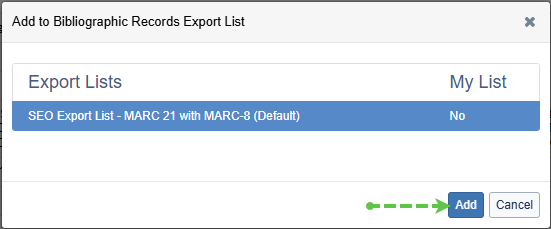
- In the Add to Bibliographic Records Export List dialog, ensure SEO Export List is selected and click Add.
- A success message will appear.SEO staff will load these records into WorkFlows each morning; no further action is required on the export list.
