Open navigation

Marking Items as Received or Not Received

Receiving Interlibrary Loan Items

  1. Enter the Request ID.
  2. Click the Searchbutton.

    Request ID search field and search button in the Referral Center

  3. Click in the Print Book Straps/Stickers box if you want to print a book strap or sticker.
  4. Mark the item as Received or Not Received.
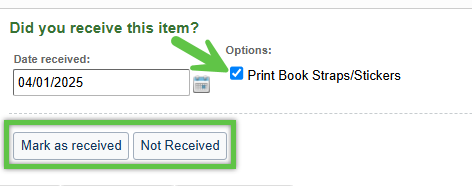
    Status selection interface with options for Received or Not Received

  5. You will receive a confirmation that the item status was updated.

    Confirmation message showing item status updated successfully

Was this article helpful?

That’s Great!

Thank you for your feedback

Sorry! We couldn't be helpful

Thank you for your feedback

Let us know how can we improve this article!

Select at least one of the reasons
CAPTCHA verification is required.

Feedback sent

We appreciate your effort and will try to fix the article
