
A Personal View allows you to save specific report configurations (filters and selections) so you don't have to re-enter them every time you run the report.
Note: If a report requires you to enter dates manually, you will need to adjust those prompts each time before running your saved Personal View.
- Run the report you wish to save as a Personal View.
- Click the down arrow next to Report Home and select Create Personal View.
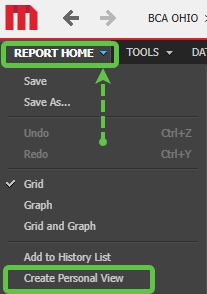
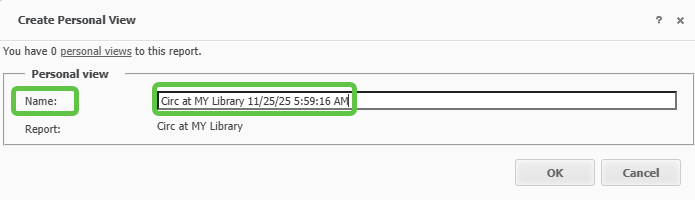
- In the Name field, enter a custom name for your report. Click OK.
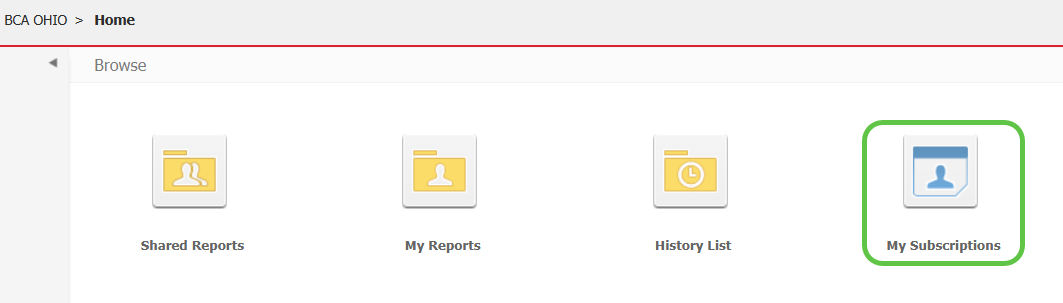
- To access your saved reports later, click the My Subscriptions icon on the main navigation bar.
- To open the report directly, click on its Title.
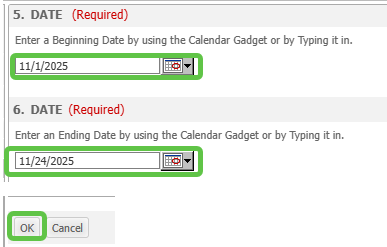
- Modifying Prompts: If you need to change settings (like a date range) before running the report, click the green question mark icon in the Action column.

- Adjust your parameters and click OK.
- A confirmation message will appear. Click OK.
- Finally, click the Title of the report to generate the updated results.