You can identify items with specific notes (Private, Public, or Staff) using two different methods: the Item Group Editor for immediate batching or BLUEcloud Analytics for reporting.
Method 1: Using the Item Group Editor (IGE)
Use this method if you need to find items with specific notes to make immediate batch changes.
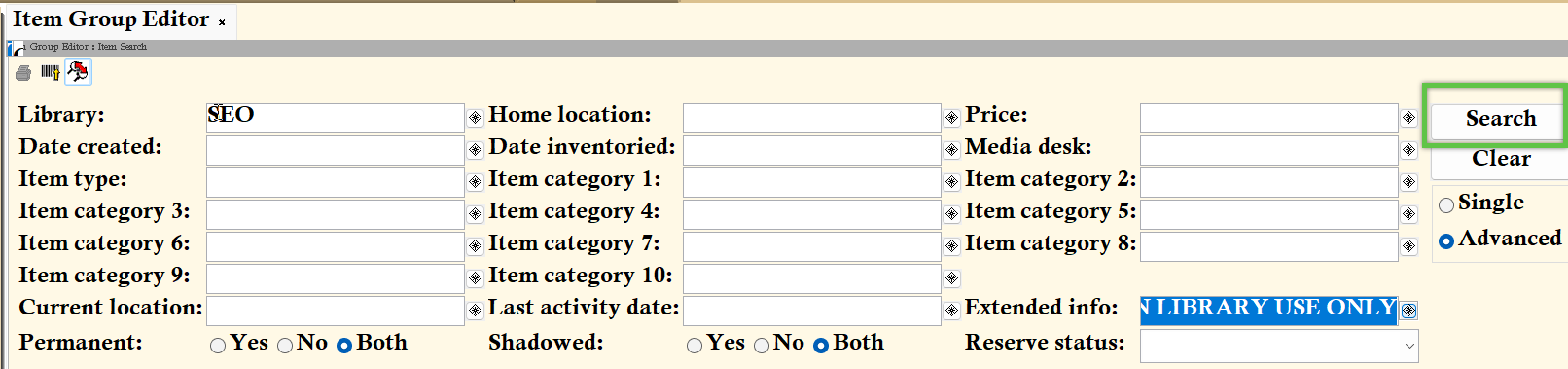
- From the TECH Toolbar, click on the Item Group Editor wizard.
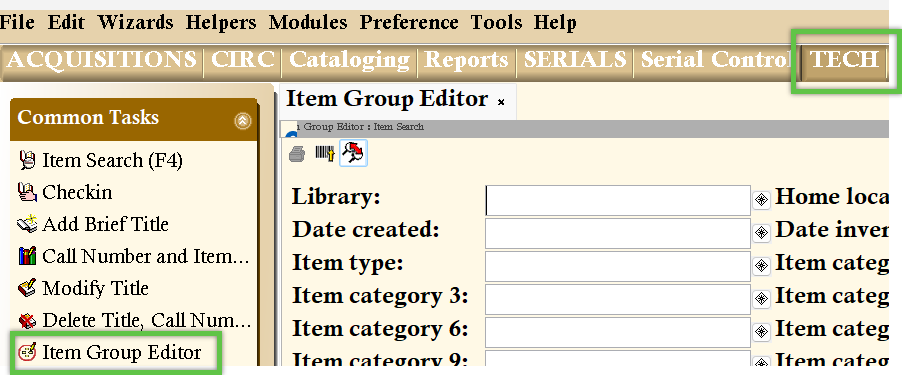
- In the Library field, enter your library code.
- Click the Extended Info helper (the gadget icon).
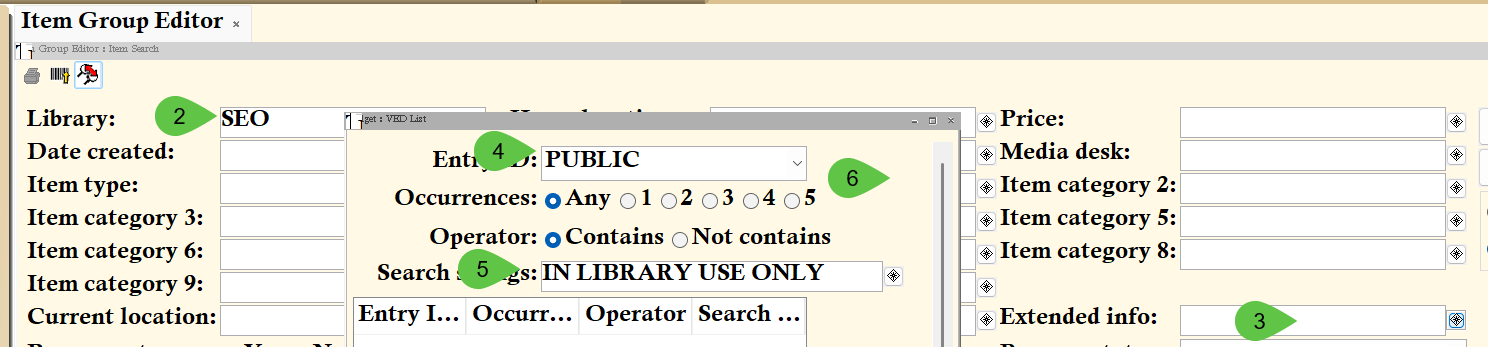
- In the Entry ID field, type the type of note you are looking for (e.g., PUBLIC, CIRCNOTE, or STAFF).
- In the Search Strings field, enter the specific text of the note you are searching for, then click Add and OK.
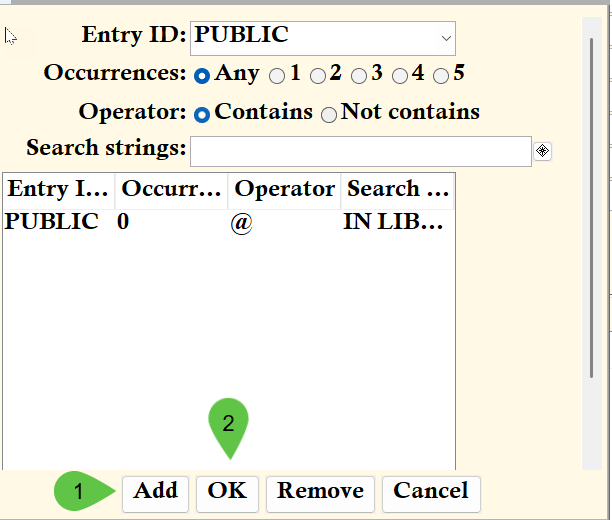
- Click Search to generate your list.
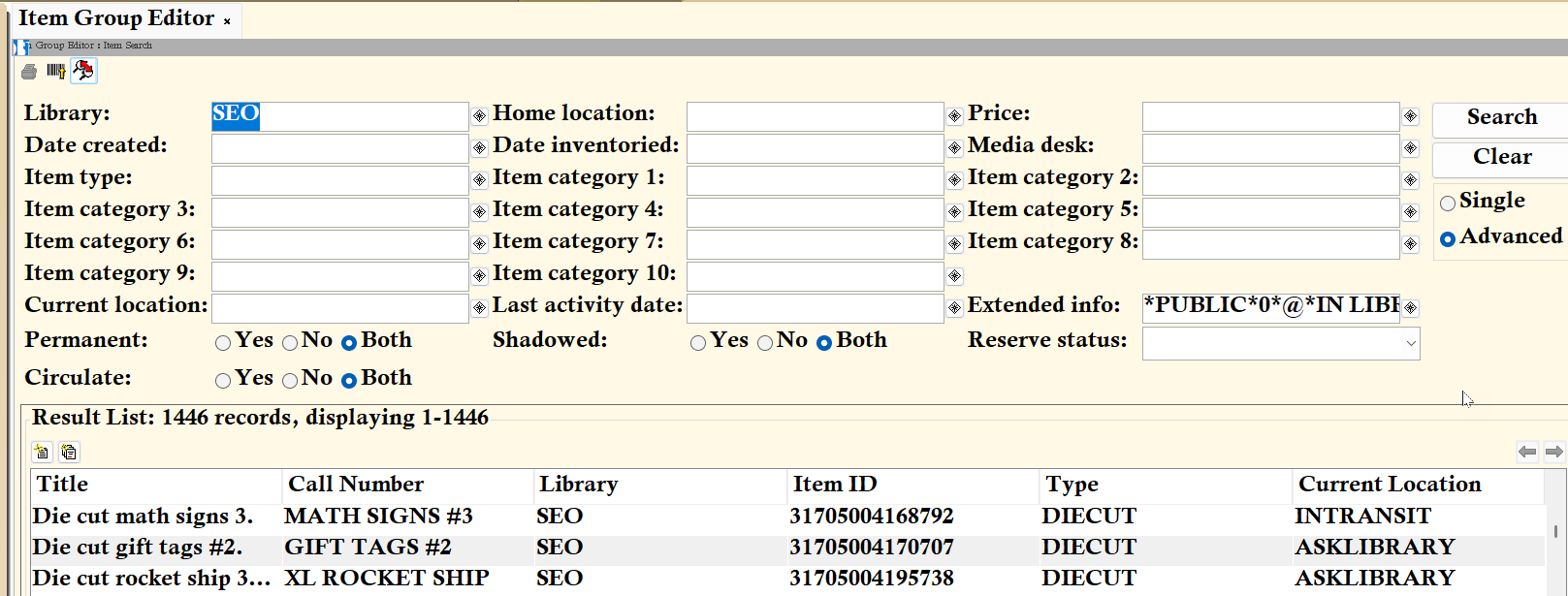
Example Results: The items containing that specific note text will populate in the Results List.
Method 2: BlueCloud Analytics Report
Use this method to generate a formal report of all items containing specific notes.
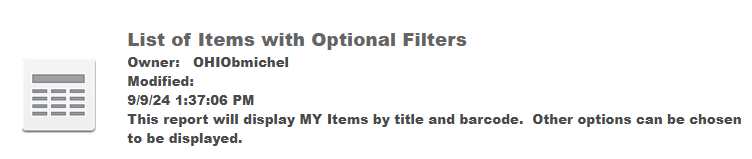
- Open the Items with Notes report template in BlueCloud Analytics.
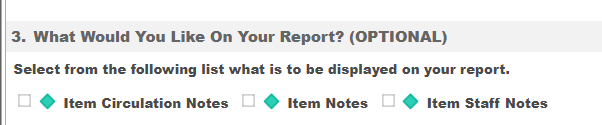
- Select the specific note types you want included in the report.
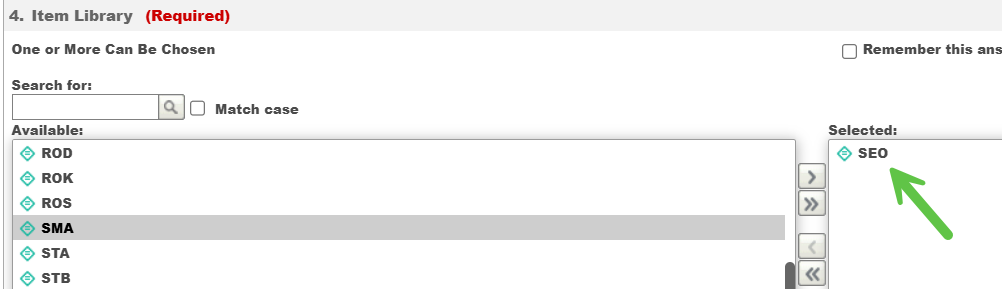
- Choose your library from the filter list.
- Click Run Report to view or export your data.