
To locate and open a saved group of items within the Item Group Editor (IGE), follow the steps below.
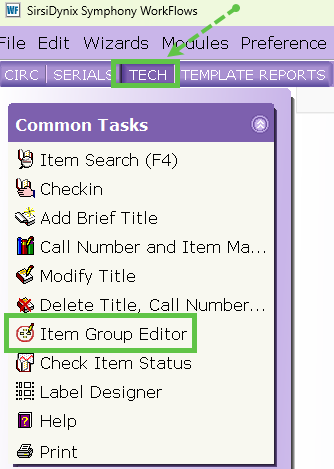
- From the TECH Toolbar, click on the Item Group Editor wizard.
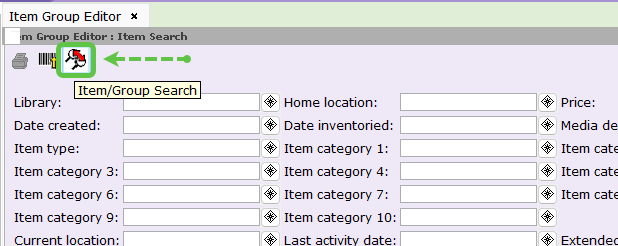
- Click on the Item/Group Search Helper (the magnifying glass icon).
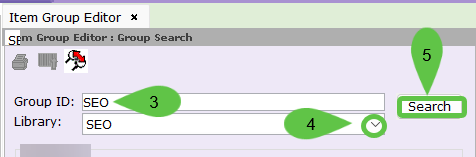
- In the Group ID field, enter the group name or the beginning characters of the name.
- In the Library field, select your library from the dropdown.
- Click Search.
Pro-Tip: If you cannot remember the name of the group, select your library and leave the Group ID field empty. This will return all groups created by your library.
- Open the Group:
- If multiple groups appear, select the correct one and click Manage Group.
- If only one group is found, it will open automatically; simply click Manage Group.
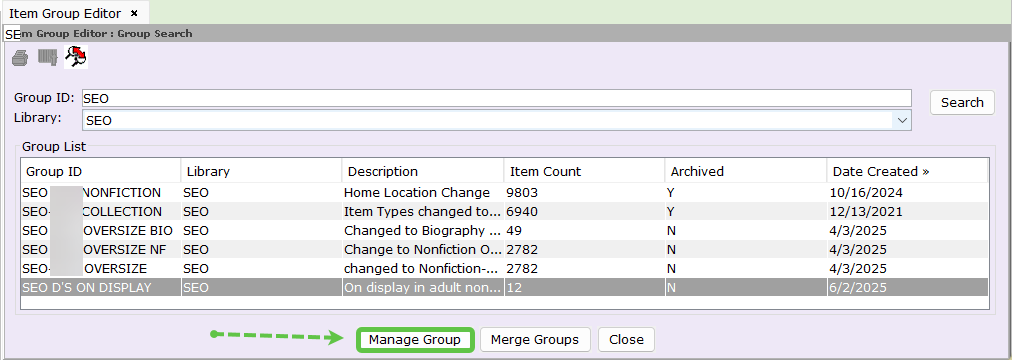
- From here, you can choose to Edit the items in the group or Remove the group entirely.